Crops
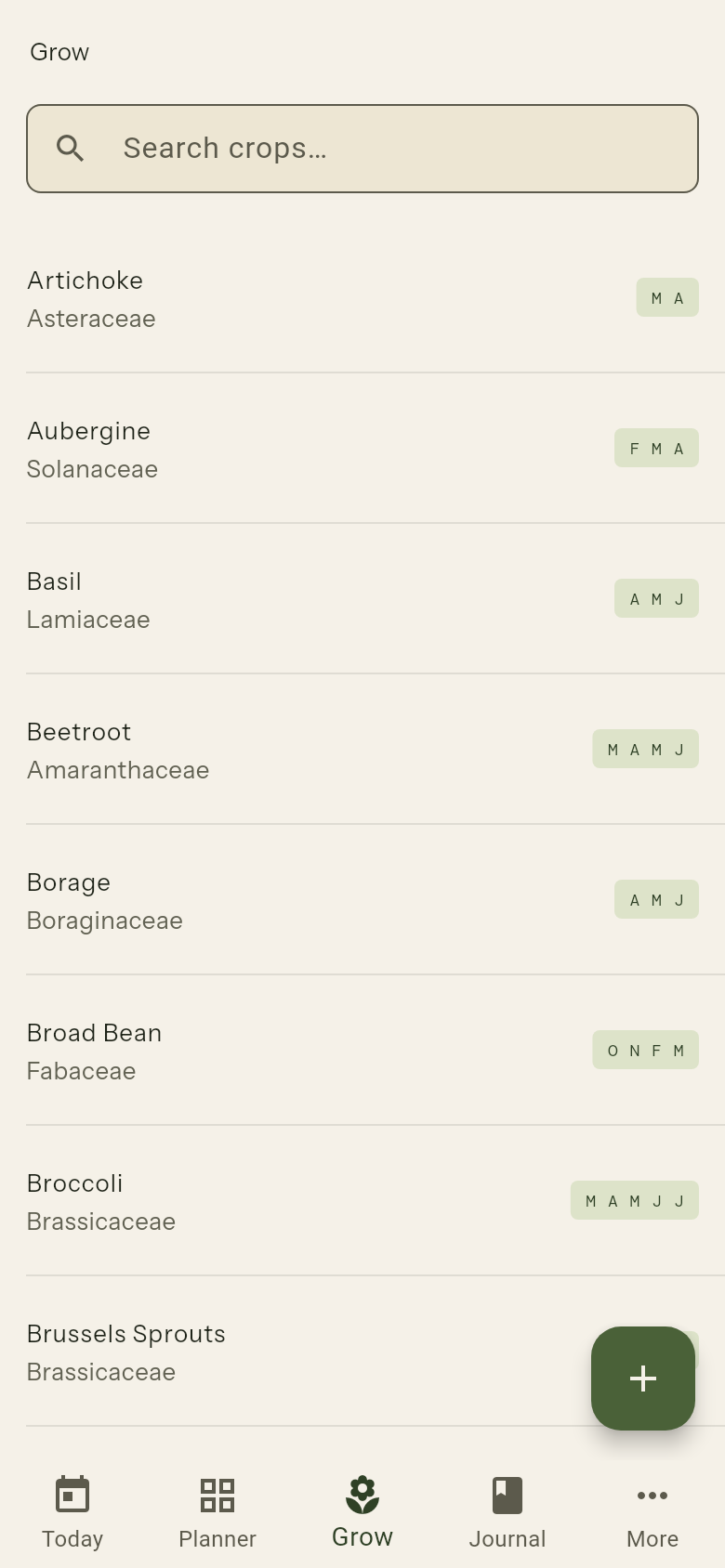
The Grow tab is your crop reference library. It contains a built-in database of common vegetables, herbs, and fruits with growing information, plus any custom crops you have added.
Browsing
Crops are listed alphabetically. Use the search bar to filter by crop name or plant family (e.g. search "Solanaceae" to find all nightshades).
Crop details
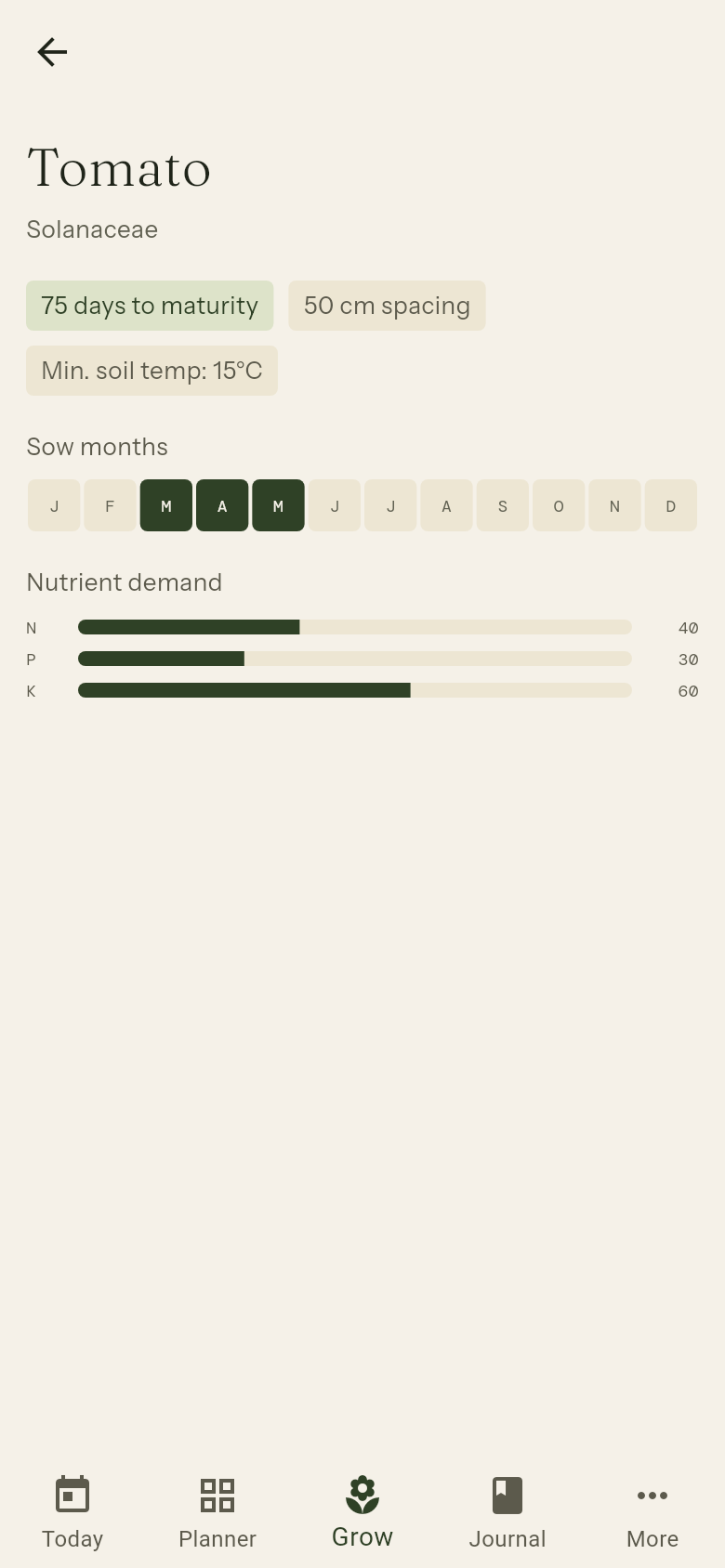
Tap any crop to see its full profile:
| Field | What it means |
|---|---|
| Family | Plant family — used for companion planting and rotation |
| Days to maturity | Approximate days from sowing to first harvest |
| Spacing | Recommended distance between plants in cm |
| Sow months | Best months to sow in your climate |
| Frost hardy | Whether the crop tolerates frost |
| Min. soil temperature | Minimum soil temp for germination |
| Sun requirement | Full sun, partial shade, or shade |
| Nutrient demand | How much NPK the crop needs (low / medium / high) |
The detail page also shows:
- Companion planting — crops that benefit or conflict with this one
- Your plantings — past and current plantings of this crop in your garden
Custom crops
Your garden may include varieties that are not in the built-in library.
Adding a crop
- Open the Grow tab
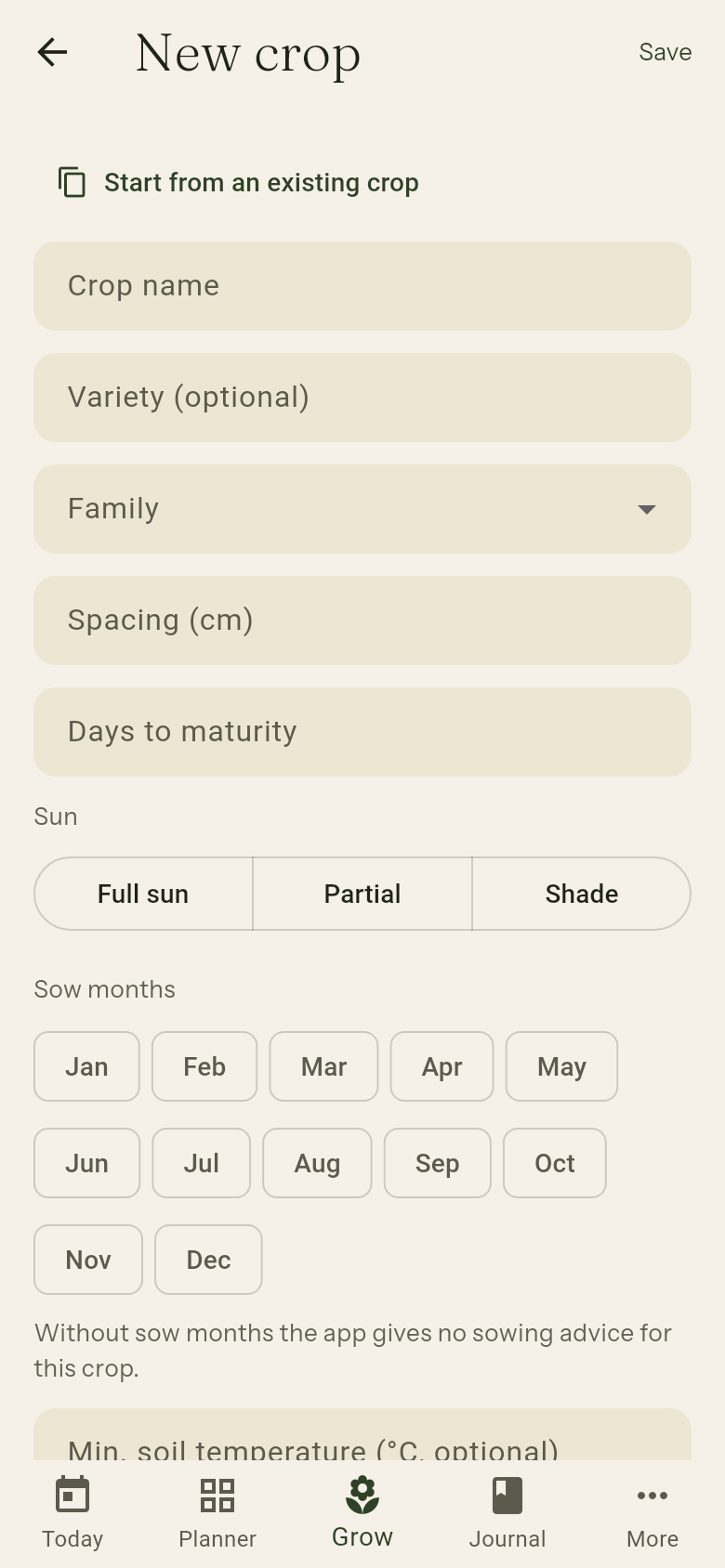
- Tap the + button (New crop), or tap Add custom crop at the bottom of the crop list on the Add Planting screen in the Planner
- Fill in the Crop name, pick the Family from the list (choose New family… to type one that is not there) and enter the Spacing (cm)
- Optionally add the variety, days to maturity, sun, the Sow months, the minimum soil temperature, the Nutrient demand (N, P and K: low, medium or high), watering and feeding intervals, frost hardiness, whether the crop Fixes nitrogen (legumes), and notes
- Tap Save
The sow months, soil temperature and nutrient demand are what give a custom crop the same advice as a built-in one: sowing suggestions on the Today screen, the sow-window and soil checks in the planner, and the nutrient indicator of a bed. Without sow months the app gives no sowing advice for the crop, and says so on its detail page.
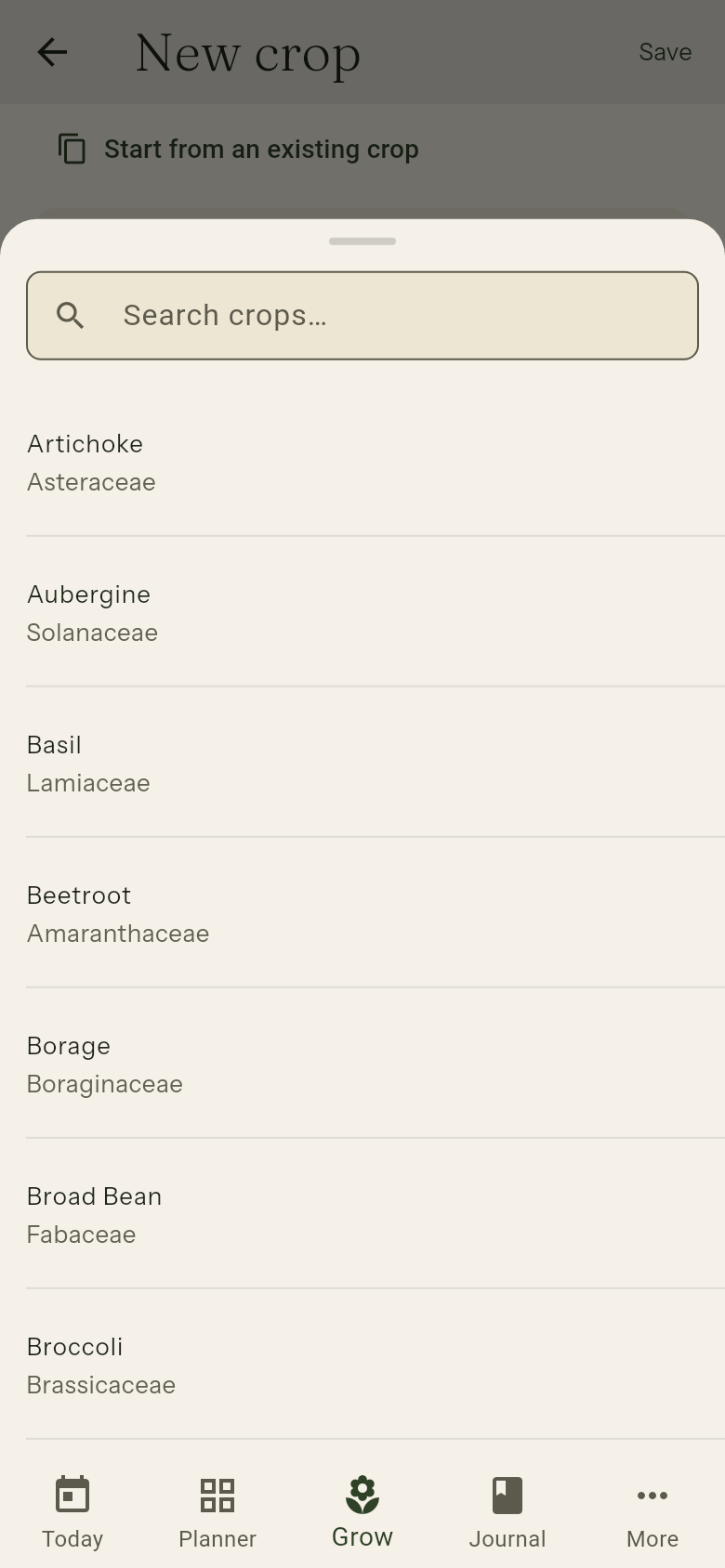
Tip: start from an existing crop. At the top of the form, tap Start from an existing crop and pick any crop, built-in or your own. All its values are copied into the form, including the sow months and nutrient demand. Give it its own name (two crops with the same name and variety are not allowed), change whatever differs, then save: you get a new custom crop of your own and the original stays as it is. This is also the way to make your own version of a built-in crop, for example with another watering interval. A few built-in crops (fennel) have special companion rules of their own; a copy made this way gets the same rules, whatever name you give it.
The family decides which crops count as relatives for crop rotation and companion planting, and the spacing lets the app place the plants on your bed. That is why both are required. From the Add Planting screen the new crop is selected straight away.
Custom crops appear alongside the built-in ones in all screens. A custom crop shows its variety next to the family, for example "Brassicaceae · Redbor".
No watering interval set? The app defaults to a 2-day watering reminder for any crop without an interval. If you don't want a crop to trigger watering reminders, set a very long interval (e.g. 999 days) rather than leaving the field blank.
Editing a crop
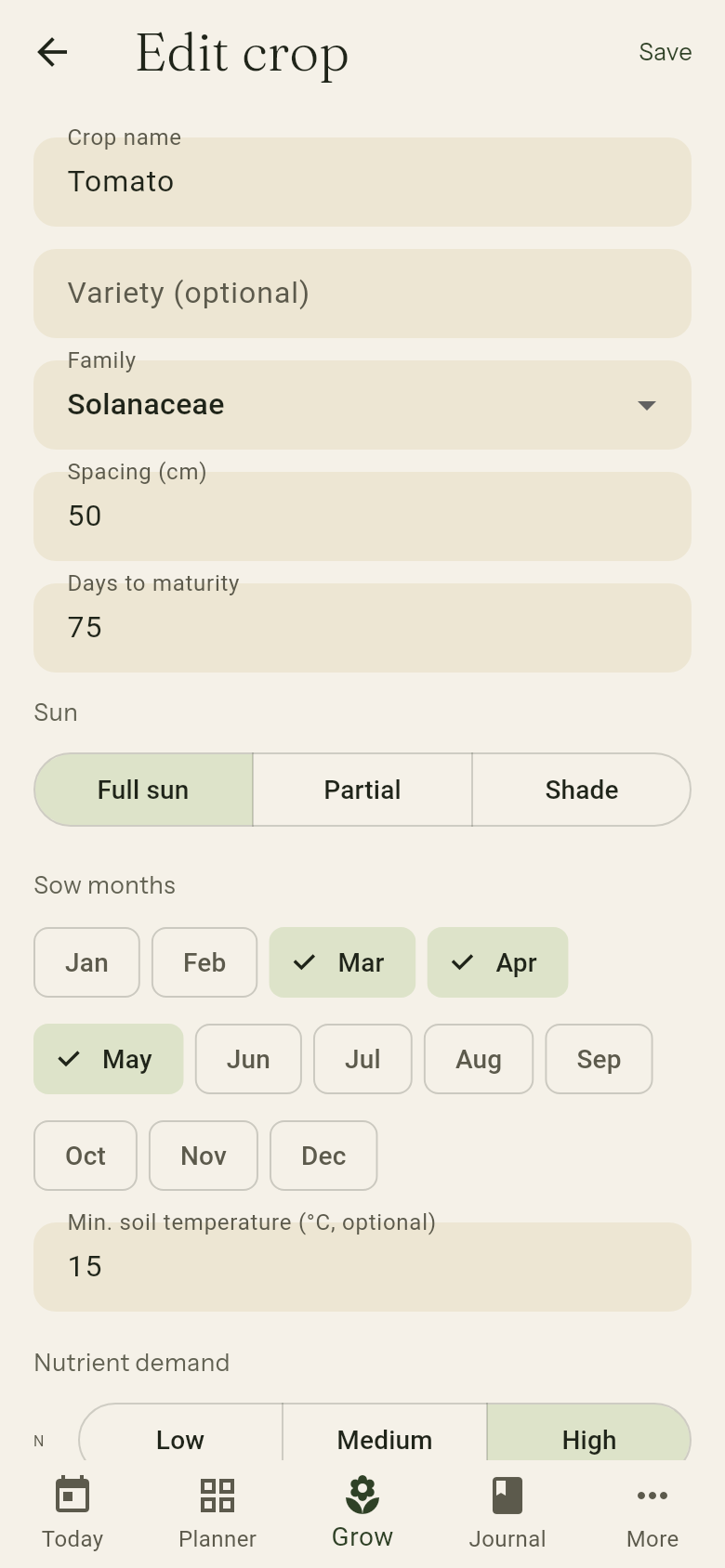
You can edit custom crops at any time: open the crop and tap the pencil. Built-in crops cannot be edited, but you can add your own notes by creating a journal entry and linking it to a planting of that crop.
Deleting a crop
Open a custom crop and tap the trash can, then confirm with Delete. A crop that has been planted, even in a past season, cannot be deleted: its plantings are part of your garden's history and of the rotation suggestions. The app tells you how many plantings use it. Built-in crops cannot be deleted.
Companion planting
Every crop belongs to a plant family. The app uses family-level companion planting rules to determine which crops help or harm each other. Some individual crops also have specific overrides (for example, basil is a good companion for tomato within the nightshade family).
Companion information is shown:
- On the crop detail page
- As chips on the Add Planting screen when you are choosing a crop for a bed that already has plantings
- As a summary banner on the bed detail screen