More
The More tab holds everything that is not part of your daily routine: your garden settings, the season's harvest totals, backups and the built-in help.
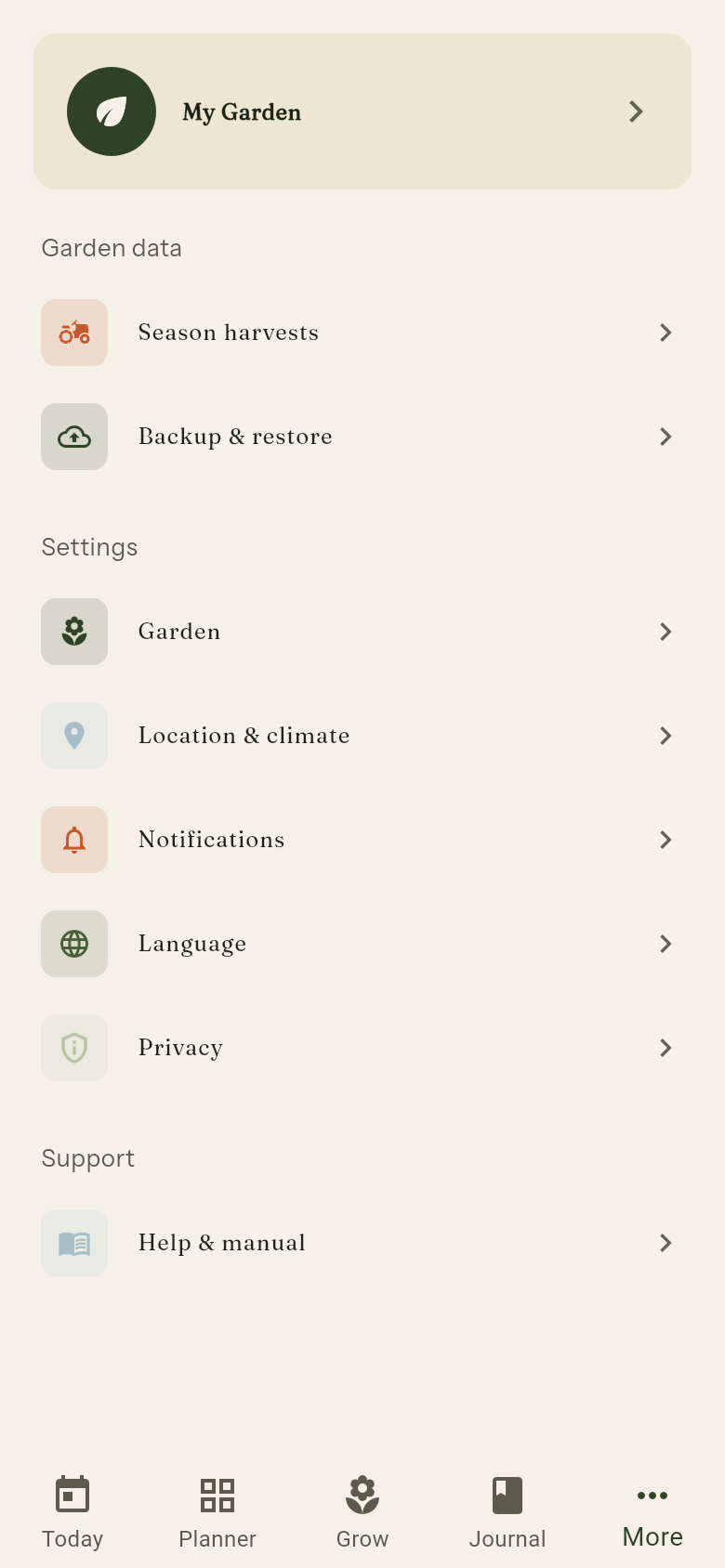
Profile card
At the top you see a card with the name of your garden. Tap it to open the garden settings.
Garden data
Season harvests
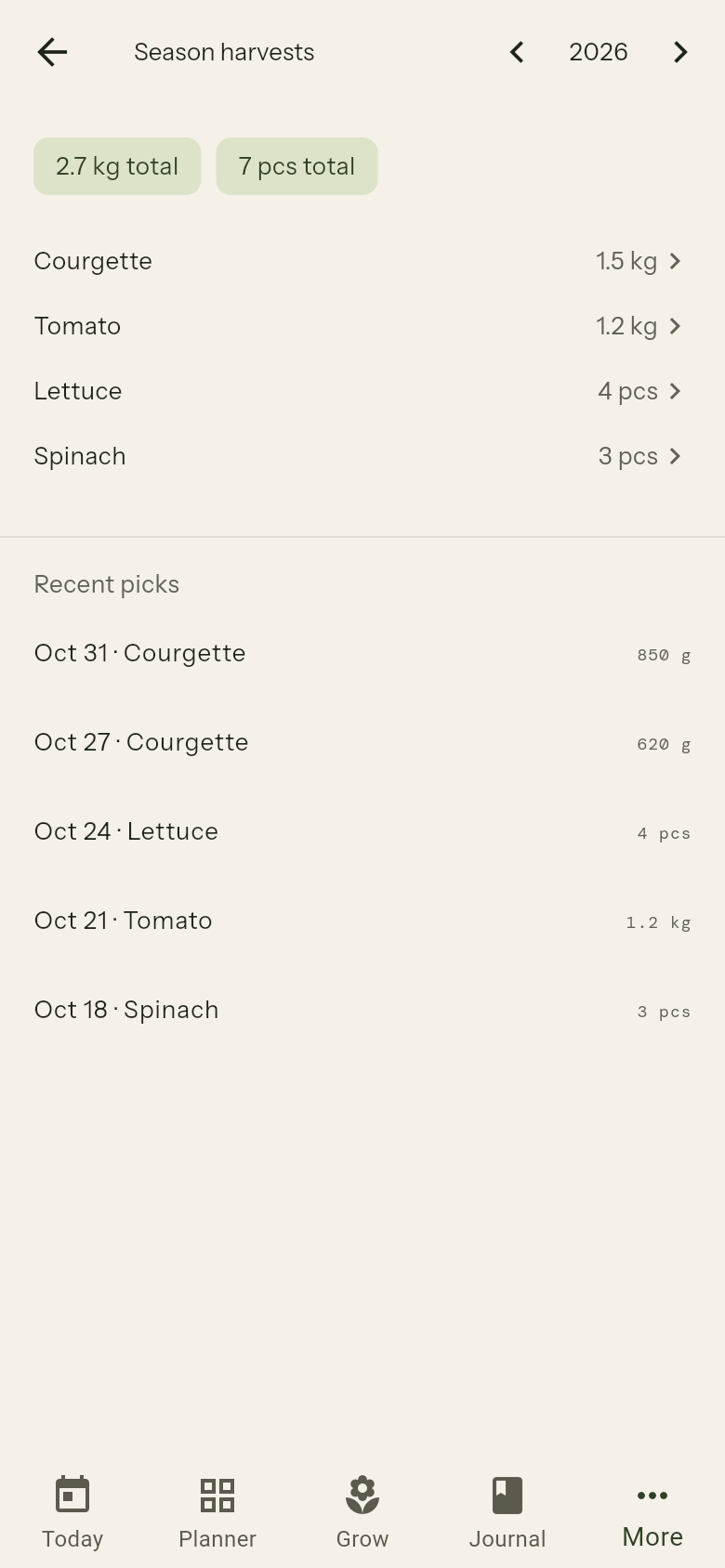
Season harvests adds up everything you logged in the harvest rounds on the Today screen. Choose a year at the top to see, per crop, the total weight in kg, the number of pieces and how many times you picked. Below the totals you find the most recent individual picks.
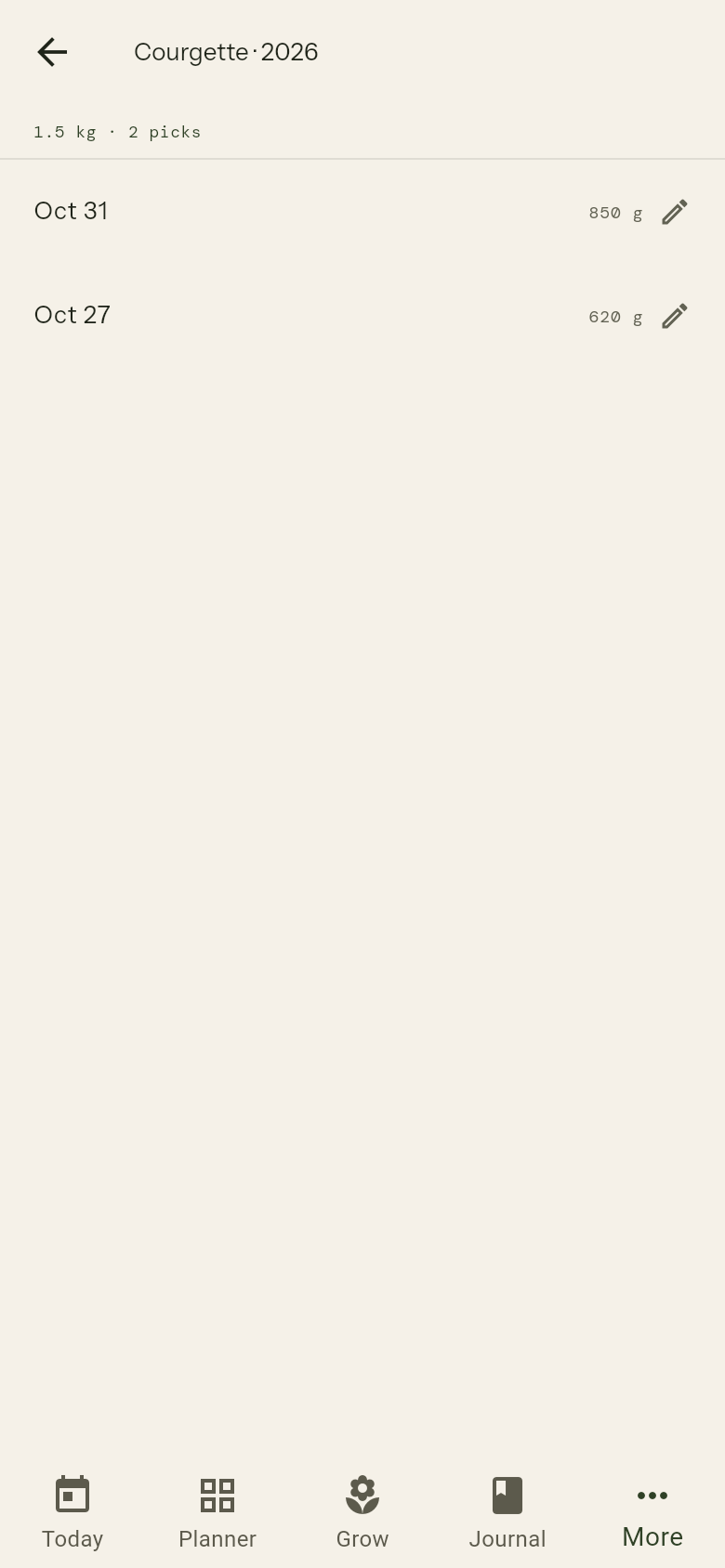
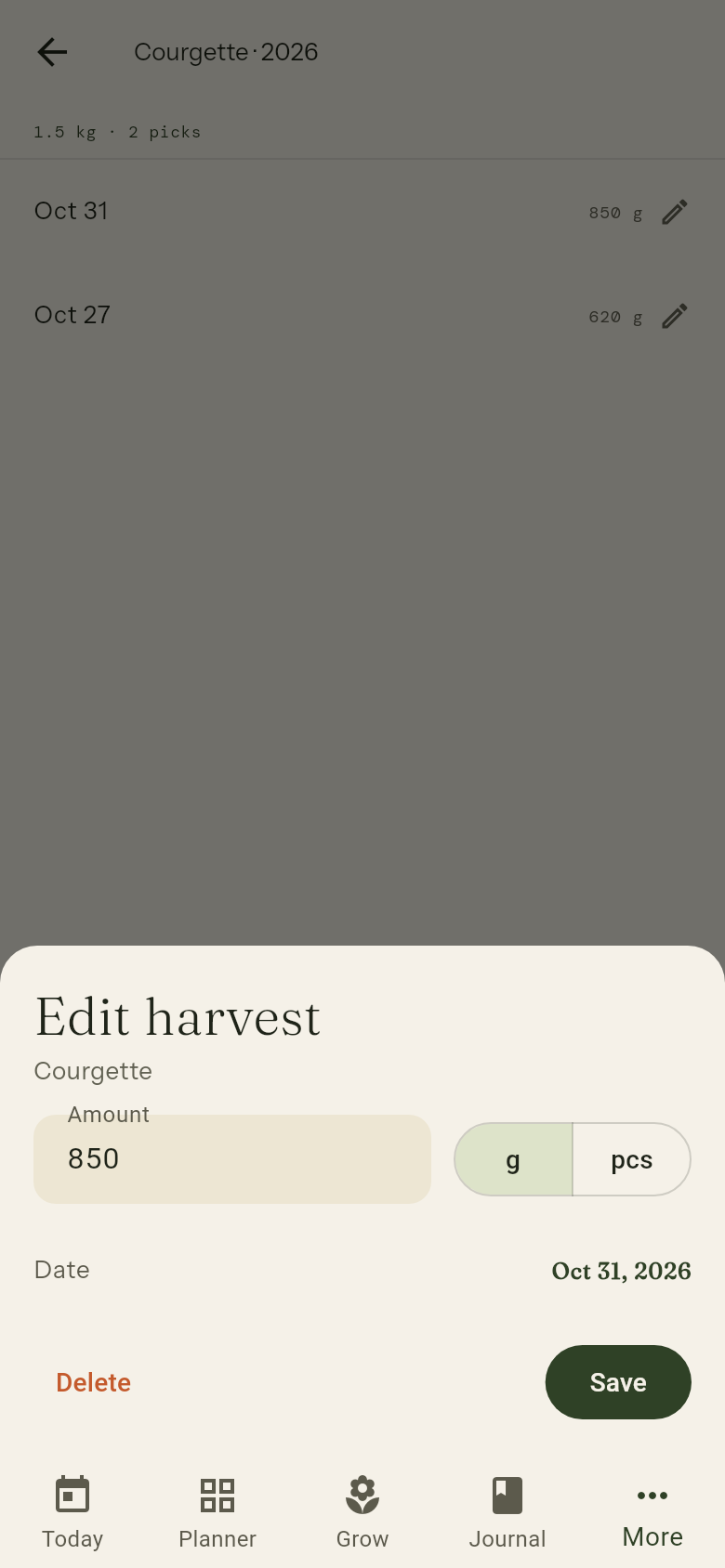
To correct a mistake, tap a crop to see every pick of that crop in the chosen year, or tap a pick under the totals. Edit harvest lets you change the amount, the unit (g or pcs) and the date, and Delete removes the pick after you confirm. The totals update straight away.
Backup & restore
Open Backup & restore to make a copy of your garden data or to bring a copy back.
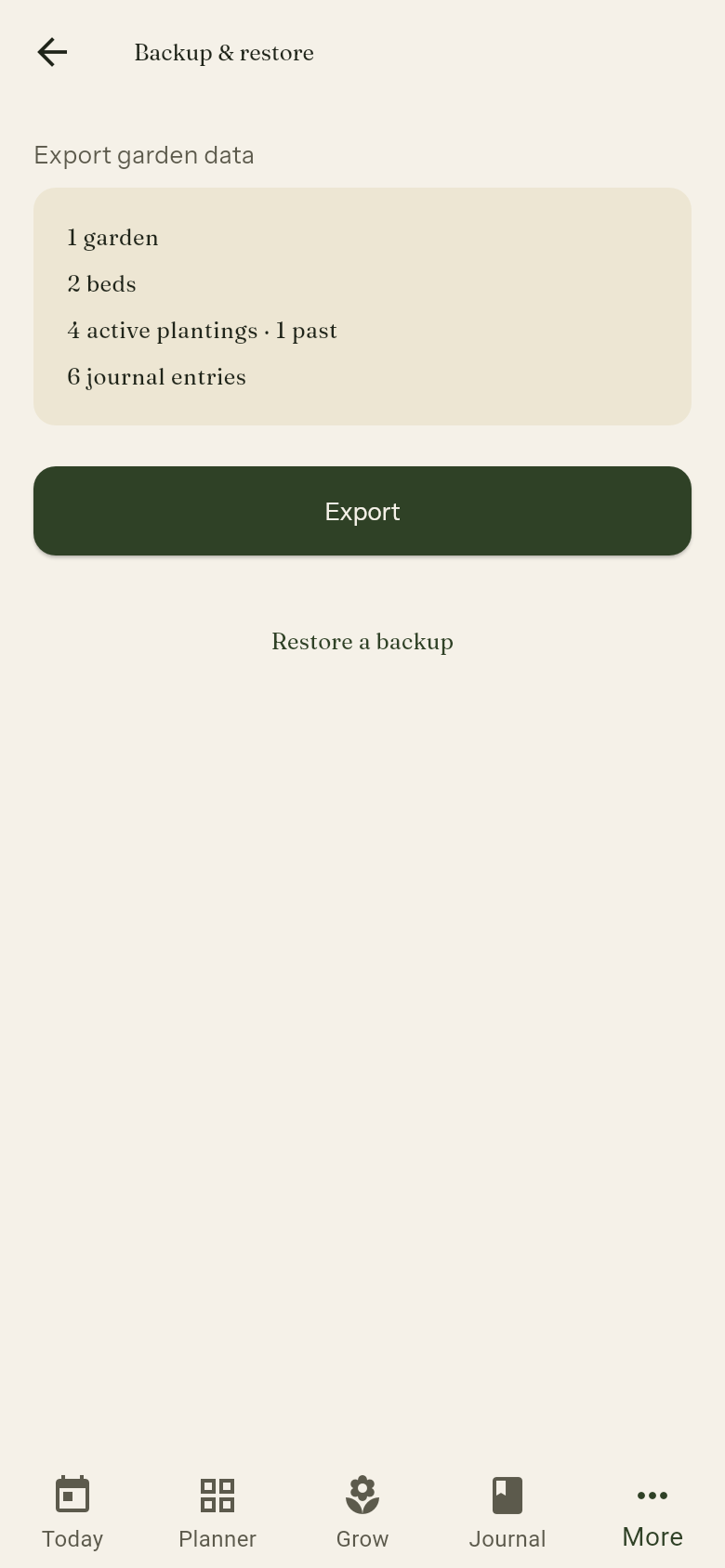
To export your data:
- Check the summary card: it shows how many gardens, beds, plantings and journal entries the backup will contain
- If your journal has photos, switch Include photos on or off. With photos the backup is a .zip file; without photos it is a small .json file
- Tap Export and choose where to send the file. On a device without a share menu the app saves it to your Downloads folder instead
To restore a backup:
- Tap Restore a backup
- Tap Select backup file and pick a .json or .zip backup
- Review the Backup contents, and any Compatibility notices
- Tap Restore this backup and confirm
Restoring replaces everything. All gardens, plantings and journal entries on the device are permanently replaced by the contents of the backup. If the file is not a valid backup, or was made by a newer version of the app, the app tells you and your existing data stays unchanged.
If some photos cannot be copied back (for example because the device is full), the restore still completes and the app shows how many photos are missing. Photos that no restored entry uses are removed from the device.
Settings
Garden
Change the name of your garden and tap Save.
Location & climate
Your location drives the weather on the Today screen, and your frost dates are used for sowing guidance.
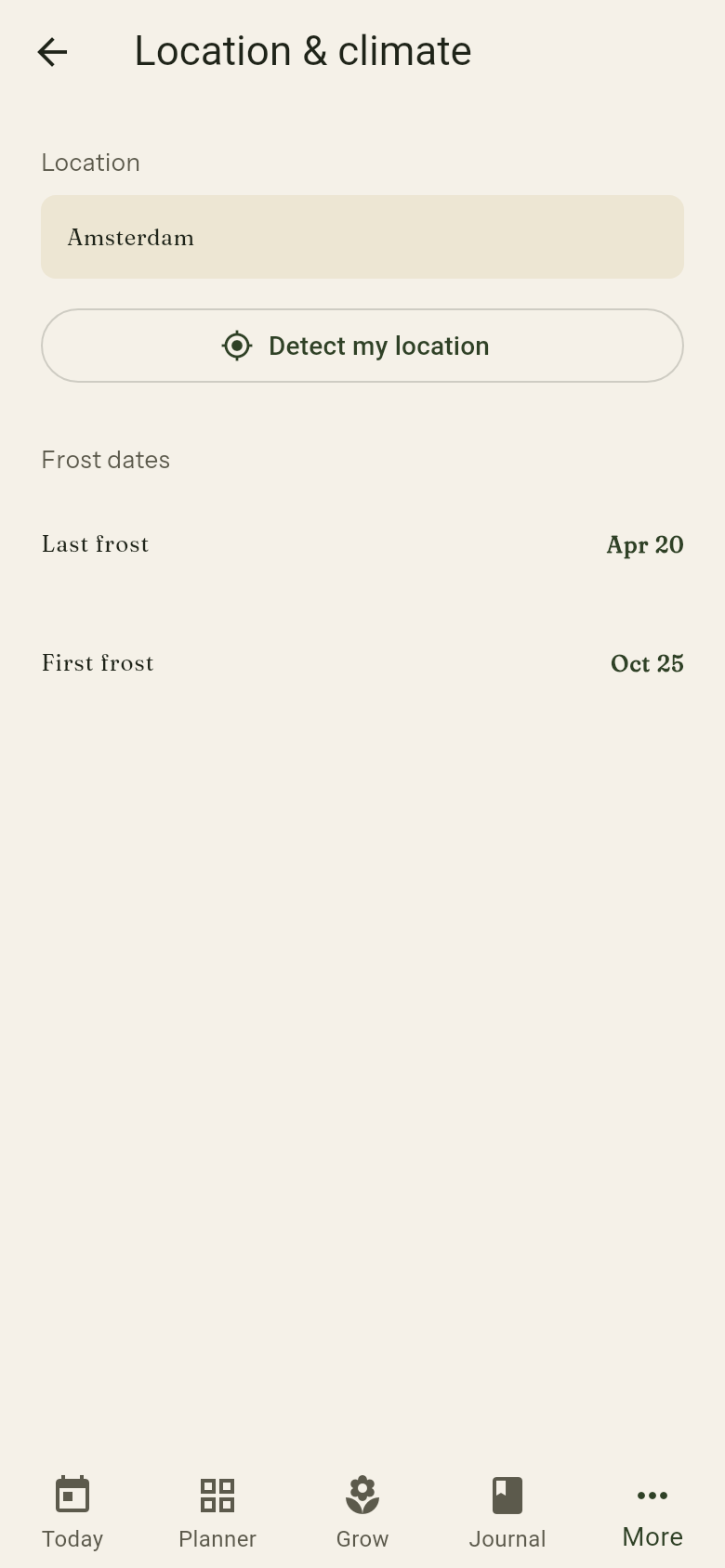
- Tap Detect my location to use GPS (the app asks for permission first)
- Under the frost dates, tap Last frost or First frost to pick a date for your area (southern-hemisphere gardens get a first frost in the following year; in the tropics the screen shows No frost expected)
Which services see what: detecting your location reads the position from your phone and needs no Google services. The place name is looked up once per tap at OpenStreetMap (Nominatim), which receives your coordinates. Weather and city search use Open-Meteo. Crash reports and usage statistics go to Sentry and PostHog only after you switch them on under Privacy.
Notifications
Switch on Daily reminder to get a notification each day, and choose the time. Tap Send test notification to check that notifications reach you. If notifications are blocked in your system settings, the app tells you so; allow them there first. Notifications are not available on Linux yet.
Language
Choose English, Nederlands or Română. The app switches language immediately.
Privacy
The first time you open the app, a dialog asks whether you want to help improve it. Both choices are off until you switch them on:
- Crash reports: when the app fails, we send the error, the app version and the phone model.
- Usage statistics: we count which screens are used, with a random device ID. No names, no location.
Your garden, beds and journal never leave your phone. Tap Save choices to confirm. You can change both switches at any time under Settings, then Privacy.
Help & manual
Help & manual opens this manual inside the app. Without an internet connection the app tells you so; tap Open in browser to read it in your browser instead.